Giving new employees the documents they need, adjusting access after transfers, and handling departures are part of knowledge management. Even well-organized documents are difficult to operate if their permitted audience is unclear.
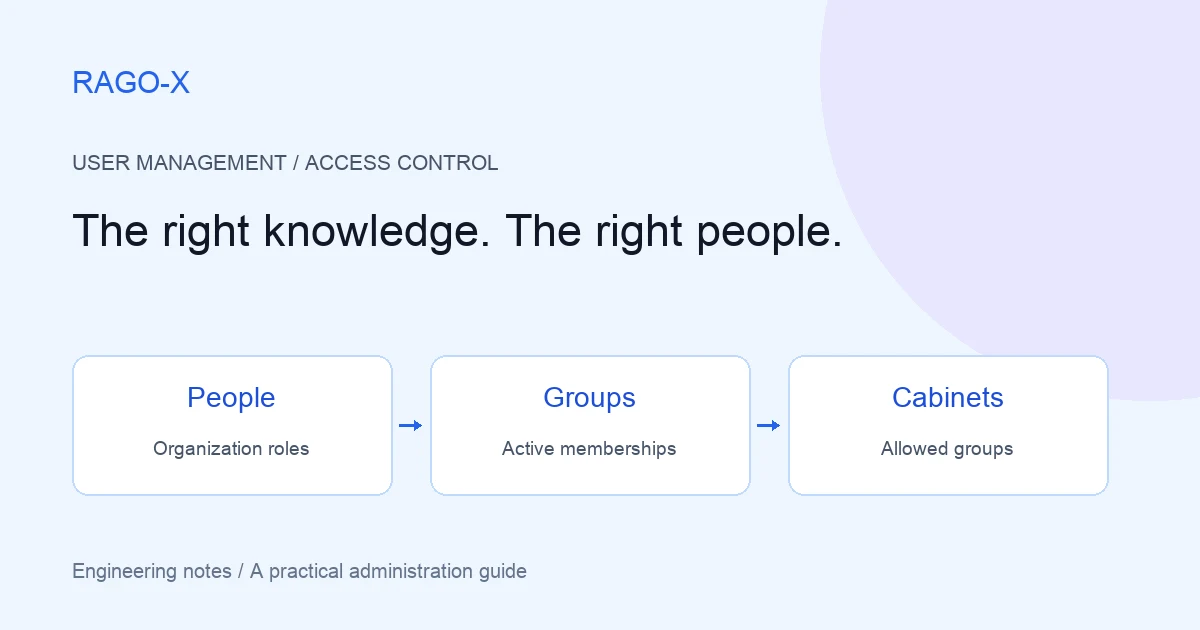
RAGO-X separates organization roles from user groups for cabinet access. Inviting someone, assigning an administrator role, and granting access to a cabinet are different settings.
This article is based on RAGO-X user management, permission management, and access-control behavior. The departments and people below are fictional examples.
How roles differ from access groups
Ask two separate questions:
- Does this person need to administer the organization or change settings?
- Which cabinets does this person need for their work?
The first concerns a role; the second concerns cabinet access groups.
| Setting | Purpose | Example |
|---|---|---|
| Organization role | Administrative authority | Owner, administrator, member |
| User group | People who need a similar work-related access scope | All staff, HR operations, customer support |
| Cabinet access group | Groups allowed to use a cabinet | Connect customer support to the support manual cabinet |
| User status | Active or inactive account | Deactivate a departing employee |
Naming a group Administrators does not grant its members the organization administrator role. Likewise, access to a cabinet does not require promoting the user to administrator.
Owner, administrator, and member
RAGO-X uses OWNER, ADMIN, and MEMBER organization roles.
| Role | Operational purpose | Consideration |
|---|---|---|
Owner (OWNER) |
Responsibility for the organization and user roles | Do not assign it merely for everyday document reading. |
Administrator (ADMIN) |
Manage users, groups, and spaces within their management scope | Not equivalent to owner; changing other admins/owners and promoting roles is restricted. |
Member (MEMBER) |
Use allowed cabinets | Check both active group membership and cabinet access settings. |
Group settings do not necessarily restrict owners and administrators in the same way as members. Some read paths exempt these roles from member cabinet-group checks. Start by assigning MEMBER to people who only need document access.
Seeing a cabinet as administrator does not imply permission to change all its settings. Reading and management are separate; administrators work within spaces they can manage.
Case 1: give a new employee only the required documents
A new customer support employee needs common guidance and support manuals, but not HR operations material.
1. Invite them as a member
In user management, check the email address and role before sending the invitation. Choose MEMBER here. Verify that the recipient completes the invitation and appears in the user list.
Sending an invitation is not the same as registering a user. If incomplete, check the invitation status and email. If the organization reaches its user limit, check usage.
2. Create work-based groups
Use Permission Management → User Groups → New Group.
| Group | Purpose | Members in this example |
|---|---|---|
| All staff | Common organization guidance | Everyone who needs it, including the new employee |
| Customer support | Support policy and manuals | Support staff |
| HR operations | HR team materials | People responsible for that work only |
Enter a name and description, and check that the group is active. Select the group and add registered users under Group Members. Add the new employee to All staff and Customer support, not HR operations.
All staff is a group created for this example, not a special system group with automatic membership. Add new users to the required groups after invitation.
3. Assign cabinet access groups
Open Permission Management → Cabinet Access, select the space and cabinet, select allowed groups, and save using Save Access Groups.
New employee — MEMBER
    ├─ All staff group       → Common guidance cabinet
    └─ Customer support group → Support manuals cabinet

HR operations group          → HR operations cabinet
Creating a cabinet does not automatically open it to members. A member must belong to an active group linked to the cabinet. A cabinet without such a link is not public to all members.
4. Verify with a member account
Do not rely only on the administration screen. Check that the member can:
- Select common guidance and support manuals.
- Start questions in allowed cabinets.
- Remain unable to use the HR operations cabinet.
An administrator may have broader read access. Their view alone cannot validate member access.
Group documents by their intended audience
Permission management assigns access groups per cabinet. It is not a screen for assigning different users to each document or configuring a separate read/edit matrix for every file.
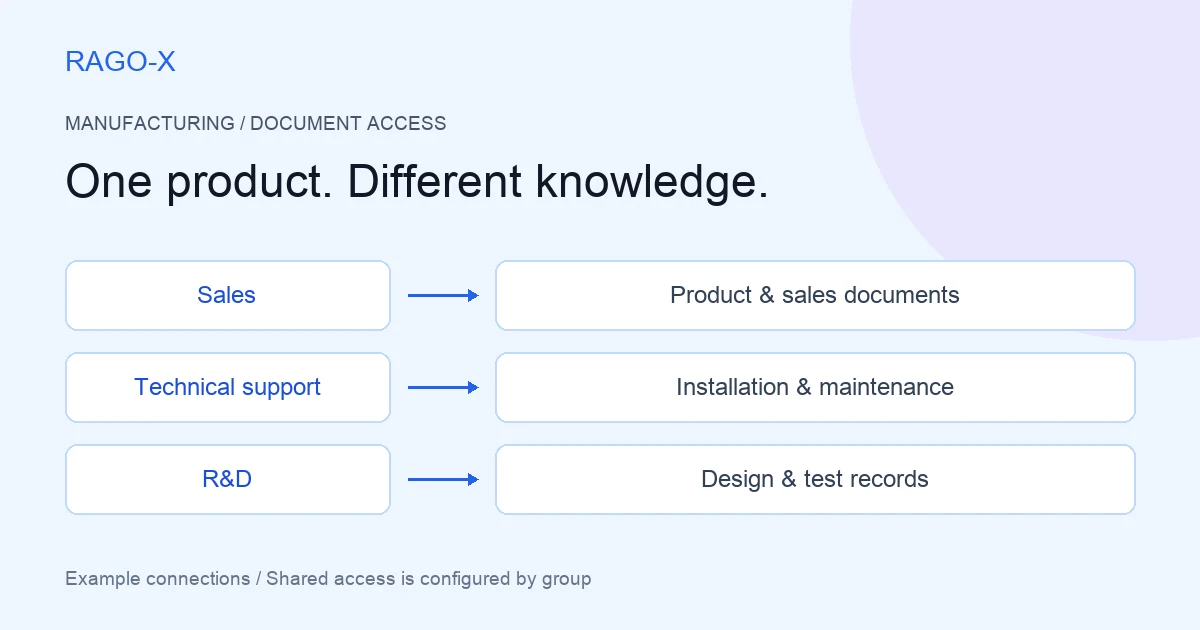
General employee benefits guidance and internal HR operations material have different audiences. Separate them into cabinets by audience instead of mixing them and relying on filenames.
| Cabinet | Example documents | Example group |
|---|---|---|
| Common guidance | Shared procedures and organization information | All staff |
| Support manuals | Support policies and response procedures | Customer support |
| HR operations | Materials for HR staff | HR operations |
Before adding documents, ask: “Can all documents in this cabinet be provided to the same people?” Audience is a classification criterion alongside subject matter.
Case 2: update permissions during a transfer
Suppose a support employee moves to HR operations. Adding the new group alone does not remove their existing support access.
When a member belongs to several active groups, any one matching the cabinet's allowed groups can preserve access. Removing one membership may leave another access path.
Define the required access after the transfer
- Identify the cabinets needed for the new work.
- Add the user to the new work group.
- Remove membership in obsolete groups.
- Retain groups still needed, such as common guidance.
- Check for alternative group paths to the former cabinets.
Here, retain All staff, remove Customer support, and add HR operations. Order the change to fit your transition schedule, taking into account access gaps or periods of overlapping access.
Removing a cabinet's entire group assignment is different from removing one user from a group. Changing the cabinet assignment for one person's transfer could affect all remaining group members.
Case 3: revoke access when collaboration ends
For temporary cross-team work, create a group such as New product collaboration and add only the participants. Choose the action according to what should stop.
| Goal | Action | Scope |
|---|---|---|
| End one person's participation | Remove that user from the group | That user's access through this group |
| Stop the entire group | Deactivate the group | All cabinet access paths through it |
| Disconnect one cabinet | Remove the group from that cabinet's access settings and save | The cabinet–group link |
| Stop use of the organization service | Deactivate the user in user management | Account active status |
Other active groups may still allow access after one group is deactivated. Account status, group membership, and cabinet links are distinct controls.
Changing access adjusts future service use. It does not remotely recall downloaded documents or answers copied to external systems.
Case 4: check departing users and API integrations together
Do not stop at account status. Check whether the departing person maintained external integrations as well.
Clean up the user account
Select the user in user management and save Edit → Status → Inactive. Review group memberships and verify the successor's access.
Administrators may be restricted from changing other administrators or owners. Ask the organization owner to handle role changes or administrator accounts. Self-role and self-status changes also have safeguards; ensure an operator remains available.
After deactivation, check login and protected functions. Do not conclude that every connection ended immediately without checking existing sessions and in-progress work.
Review API keys separately
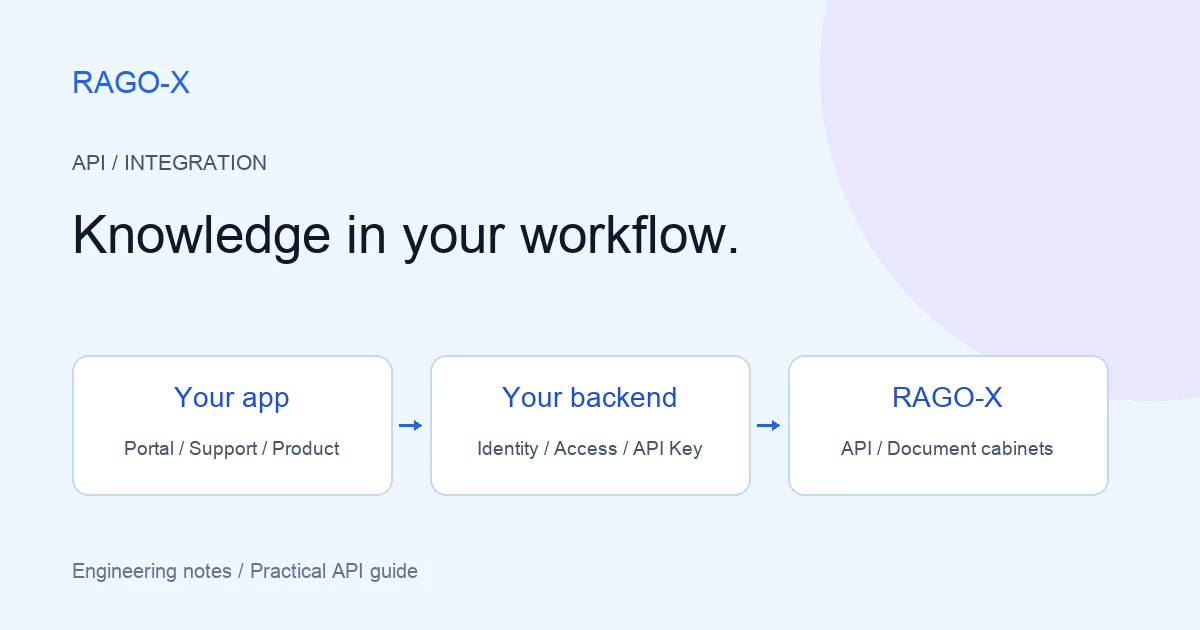
External integrations use organization-scoped API keys with their own allowed cabinets. Member group settings and API-key cabinet scopes are separate.
- Which servers and workflows use the key?
- Does a successor need to keep the integration running?
- Are its cabinet and source-IP scopes still appropriate?
- Can a new key be applied to the server before the previous key is revoked?
User deactivation does not replace key revocation. Revoking a key stops integrations using it, so coordinate handover and rotation for systems that must continue running.
For per-user authorization in external systems, see the RAGO-X API guide.
What to check when a cabinet is missing
Before broadening permissions, inspect the links in order:
- Registration and status: Has the invitation completed, and is the user active?
- Organization role: Are you testing as a member?
- Membership: Is the user actually in the required group?
- Group status: Is that group active?
- Cabinet assignment: Is it linked in the correct space and cabinet?
- Save and recheck: Were access groups saved and the user view checked again?
If too many cabinets appear, check owner/admin roles and other active memberships first. Promoting the user to administrator as a quick fix can grant much broader access than intended.
Even with correct access, questions can fail because of document readiness, credits, or other conditions. Distinguish cabinet visibility from answer-generation failures.
Keep a one-page operating record
| Item | Record |
|---|---|
| Group purpose | Which work and people does it cover? |
| Connected cabinets | Which cabinets can it use? |
| Change owner | Who handles onboarding, transfers, and departures? |
| Review timing | When are staffing changes or collaboration endings checked? |
| Exceptional authority | Why is an owner/admin role required? |
| External integrations | Which API keys and operators are involved? |
The aim is to connect people to the knowledge they need. Invite members, add appropriate groups, connect cabinets, and verify the result from the actual user's perspective.
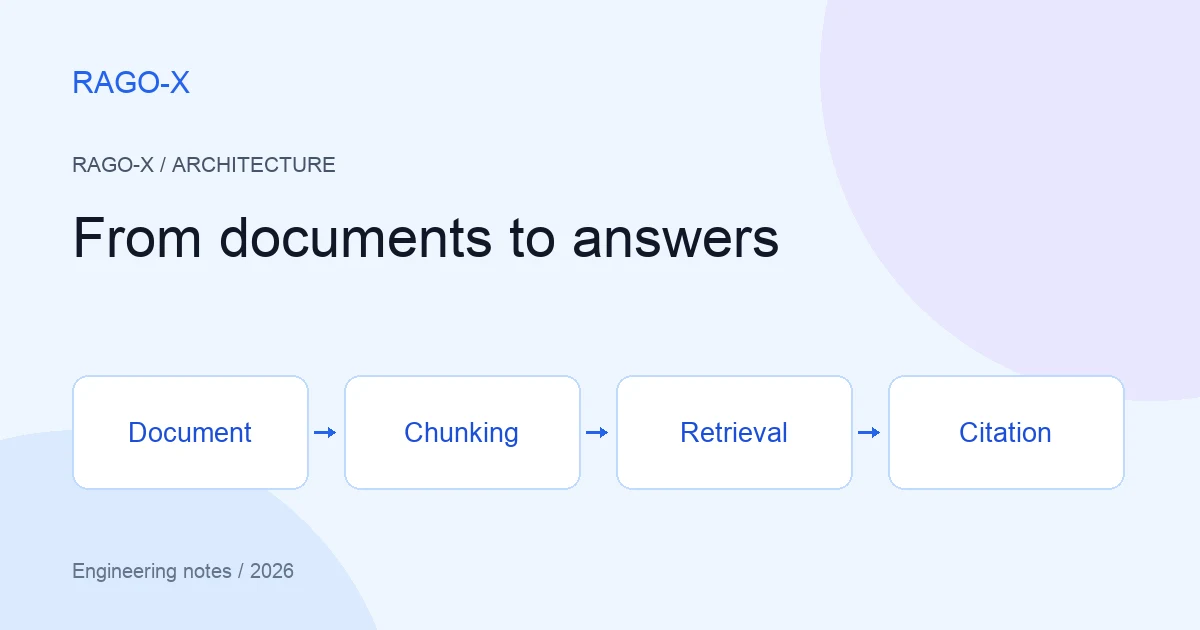
See the product overview and security information for the product scope, RAGO-X architecture for the document-to-answer flow, and support for environment-specific settings.